DESL Microgrid Handbook

IT Infrastructure
Overview
The DESL Microgrid server setup utilizes a physical Dell server running VMware ESXi hypervisor to host three distinct virtual machines (VMs). This virtualization approach isolates network traffic, database management, and control functions while allowing fast internal inter-VM communication over software switches (vSwitch).
                          ┌────────────────────────┐      ┌────────────────────────┐
                          │ DESL Microgrid Subnet  │      │   EPFL Public Network  │
                          │     192.168.1.X        │      │     128.179.xx.xx      │
                          └───────────┬────────────┘      └───────────┬────────────┘
                                      │                               │
        ┌─────────────────────────────┼───────────────────────────────┼──────────────────────────┐
        │ Dell Physical Server        │ vmnic0                        │ vmnic3                   │
        │ (ESXi Host: 192.168.1.55)   │                               │                          │
        │                             ▼                               ▼                          │
        │                   ┌──────────────────┐            ┌──────────────────┐                 │
        │                   │     vSwitch0     │            │     vSwitch1     │                 │
        │                   └─────────┬────────┘            └─────────┬────────┘                 │
        │                             │                               │                          │
        │      ┌──────────────────────┼──────────────────────┐        │                          │
        │      │ ens256               │ ens160               │ Ethernet0 │ ens192                │
        │      ▼                      ▼                      ▼        ▼                          │
        │ ┌───────────┐         ┌───────────┐          ┌────────────┐                            │
        │ │   VM.1    │         │   VM.2    │          │    VM.3    │                            │
        │ │  Router   ├─────-──►│ DataBase  │          │  DESLCtrl  │                            │
        │ │ (Ubuntu)  │         │ (Ubuntu)  │          │ (Win 10)   │                            │
        │ └───────────┘         └───────────┘          └────────────┘                            │
        │  192.168.1.56         192.168.1.58           192.168.1.59                              │
        │  128.179.34.35                                                                         │
        └────────────────────────────────────────────────────────────────────────────────────────┘
Component
| Machine / Layer | OS / Function | Private IP | Port Mapping | Role |
|---|---|---|---|---|
| ESXi Host | VMware ESXi | 192.168.1.55 |
— | Physical Dell Hypervisor host |
| VM.1 Router | Ubuntu Linux | 192.168.1.56 / .57 |
128.179.34.35 |
Firewall, traffic routing, DNAT port forwarding |
| VM.2 DataBase | Ubuntu Linux | 192.168.1.58 |
:52000 (InfluxDB):52100 (Grafana) |
Time-series data storage & monitoring dashboard |
| VM.3 DESLCtrl | Windows 10 | 192.168.1.59 |
— | Matlab / Labview control algorithm execution |
Access
Internal Access (Local Microgrid Subnet)
- Users connected to the DESL Microgrid Network (
192.168.1.X) can directly target individual VM IPs via SSH or web browser without going through external translation. - ESXi Management Interface: https://192.168.1.55
- username:
root - password:
Root442$1
- username:
- DataBase VM Direct SSH:
ssh <username>@192.168.1.58- username(Database VM):
database - password:
DESLDatabase
- username(Database VM):
External Access (Public EPFL Network)
External access to internal resources is handled via Port Forwarding (DNAT) configured on VM.1 Router:
- InfluxDB API: Incoming traffic to
128.179.34.35:52000\(\rightarrow\) Forwarded internally to192.168.1.58:8086- username:
admin - password:
DESLInfluxDB
- username:
- Grafana Dashboard: Incoming traffic to
128.179.34.35:52100\(\rightarrow\) Forwarded internally to192.168.1.58:3000- username:
admin - password:
DESLGrafana2024$1
- username:
Operating Procedures
A. Accessing the DataBase VM via Web Console
- Connect to the local MG network.
- Open a web browser and navigate to https://192.168.1.55.
- Log in using the ESXi root credentials.
- Navigate to Virtual Machines \(\rightarrow\) VM.2 DataBase \(\rightarrow\) Console \(\rightarrow\) Launch Web Console.
B. Adding the Database VM Direct SSH Access
- Open the Database VM console or SSH session with admin rights.
ssh database@192.168.1.58- Now you can execute Linux commands directly on the Database VM, such as:
- checking InfluxDB status:
sudo systemctl status influxd- find PID of InfluxDB process:
ps aux | grep influxd- stop InfluxDB service:
sudo service influxd stop- restart InfluxDB service:
influxdC. InfluxDB Troubleshooting & Restart Protocol
If InfluxDB fails or holds locked port instances:
- Connect to the DataBase VM (
192.168.1.58). - Stop any rogue or hanging background instances:
sudo service influxd stop- Restart the service in the background cleanly:
sudo systemctl start influxd
# OR run directly in the background:
nohup influxd > /dev/null 2>&1 &The InfluxDB service may crash when a large query is executed, I doubt this is due to the limited RAM of the VM.
- Until August 2026, the VM.2 DataBase is only allocated 4GB of RAM.
- May manage memory limits using the
influxdconfiguration options or environment variables, such as settingINFLUXD_QUERY_INITIAL_MEMORY_BYTESandINFLUXD_QUERY_MAX_MEMORY_BYTESto cap memory usage per query.
Battery Container
- Control desktop PC in the container:
- IP address:
128.178.46.56 - Username:
epfl_osmose@outlook.com - Password:
osmoseEPFL+
- IP address:
- Container Control LabView Structure
- LabView → Main Control → BESS Protected Control → password:
FigaBoh
- LabView → Main Control → BESS Protected Control → password:
- Container Guide
- In the server room, turn off SRC2 by pressing and holding the
Powerbutton until the green LED turns off. (Question: shall we shut down the LabView program first?) - Switch computers to the Box PC (blue Ethernet cable, monitor cable and peripheral USB cable).
- Execute
/SRC1 From Yongjiang_V2/SRC1_Modbus.exe. Input the IP address of the string172.17.10.10X(X = 1,2,3,4,5,6,7,8,9), for string#1 to string#9, and clickInitialize. - In
A1 Battery Modbus Tool->Contactors, clickopento open the contactor, wait for a few seconds, then clickShutdown batteryto turn off the string, check that the LED light on the string should turn off. - Insert the DB37 cable to the CAN bus between the Battery that has been shut down (like in this Figure).
- Back to the
A1 Battery Modbus Tool, Click onStartupbattery, wait for all the batteries to start up, and the status should change toReady. - For the disconnected battery, click on
prechargeto precharge before closing the contactor, until the voltage of the disconnected string reaches the value of other connected strings. Once the voltage levels are similar, click onfull charge. - Switch back to the desktop PC (blue Ethernet cable, monitor cable and peripheral USB cable), log in to the desktop, credentials see above.
- Restart SRC2 in the server room by pressing the
Powerbutton, then the green LED turns on. - Start the BESS Control VI in the desktop PC, and click
Startupto start the BESS control program. - The data should be display on Grafana, via this link. The Number of strings should be 9, but sometimes it may show 7/8 due to unknown reasons, after tens of minutes, it may recover to 9.
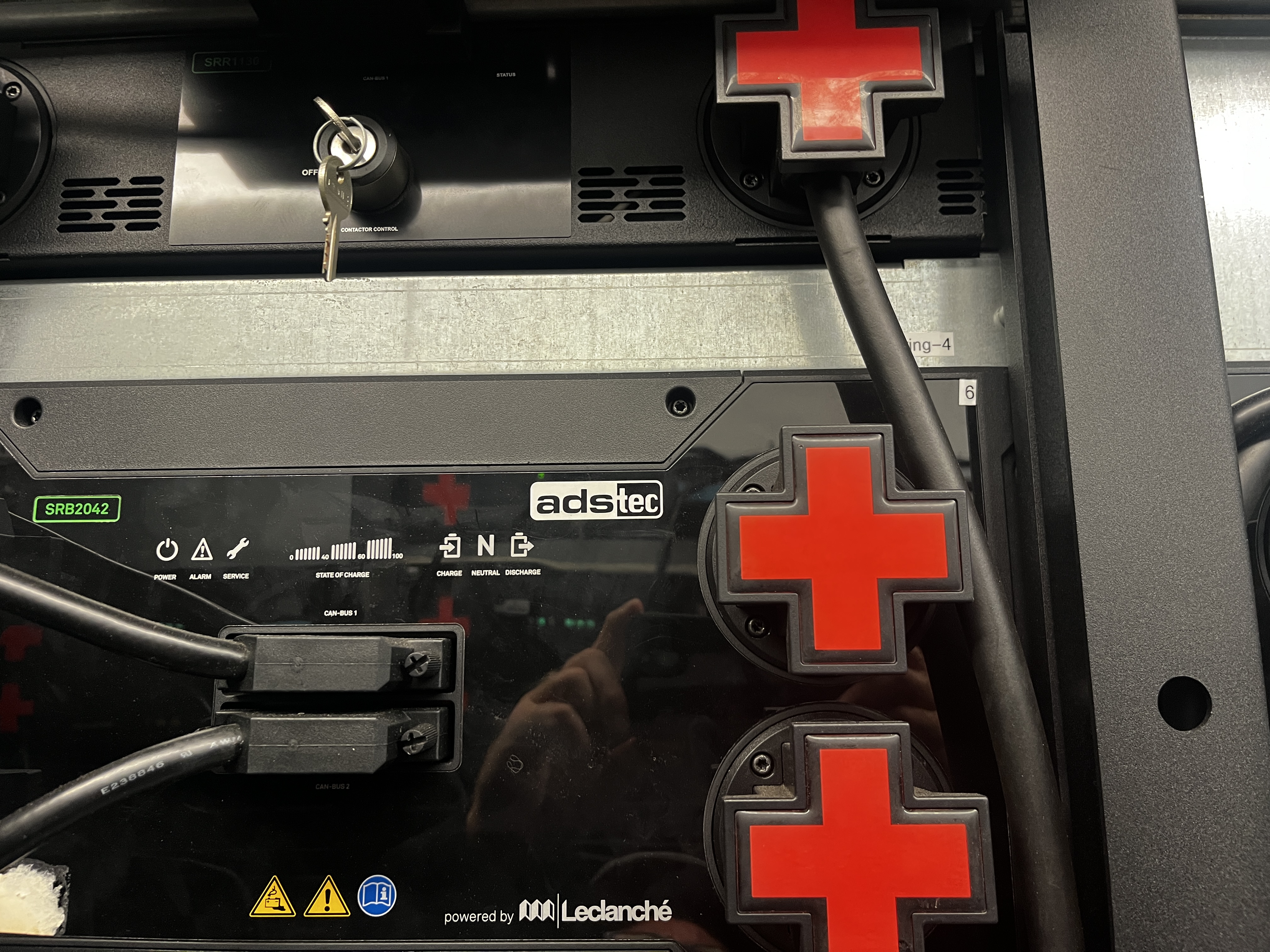
To gain the access to the container, ask Sophie to apply for the door access for you.
Door id: ELL LECL.1 (container externe) (the door on the long side of the container, facing ELL).
Repository
- An InfluxDB query client is available DESL/Influx_reading_writing.
PythonandMatlabclients are provided for reading and writing time-series data to the InfluxDB server. - Microgrid central control algorithm is available DESL/Labview-ugrid/mg_central_controller.
IT Management Training
Info: sti-it.epfl.ch
Eduroam user name:
weliu@epfl.chEntra ID username:
wenyu.liu@epfl.ch, password management by1234Service: epnet.epfl.ch/
Active Directory: sti-it.epfl.ch/ad, only on Windows machines, ADSciper is required.
subdomain:
intranet.epfl.chPort management: geoportail.epfl.ch/
Login to the EPFL owned Windows machine:
- Connect to EPFL wifi
- username: intranet username, e.g.
weliu - password: your EPFL password
Other Items
A web-based configuration and management interface for a CompactRIO device (cRIO-9068, named ELL-040-PV-Facade) is mistakenly exposed to the EPFL public network.
- Subnet IP:
192.168.1.153 - Public Access:
128.178.46.115
CompactRIO devices can be accessed via SSH, for example, on the SCADA PC:
ssh admin@192.168.1.153Then you have:
admin@ELL040-PV-Facade:~#